

- Trading Platforms
- Platforms
- User Manuals
- MetaTrader 4 User Guide
- How to Open MT4 Demo Account
How to Open Demo Account in MetaTrader 4
How to open a demo account in MetaTrader 4? Download and install the MetaTrader 4 terminal, go to File → Open an Account, enter your personal details, select a demo server, and save the credentials shown in the Registration window. The whole procedure takes about 5 easy steps and a couple of minutes.
An MT4 demo account is a free practice account that uses virtual money and real-time market quotes. It lets you learn the platform, test trading strategies, and try indicators and Expert Advisors without risking your capital. This guide explains how to open a MetaTrader 4 demo account step by step, so you can start practicing Forex and CFD trading right away.
5 Steps on how to Open a MetaTrader 4 Demo Account
Opening an MT4 demo account is free and does not require a deposit. All you need is the MetaTrader 4 terminal installed on your PC and a few minutes to complete the registration. Follow the steps below in the given order, and save your login details at the end to access your demo account at any time.
1. Download MetaTrader 4 and Install It on Your PC
Start by downloading the MetaTrader 4 installation file from the MetaTrader 4 page of our website. Open the downloaded file and follow the installer prompts. Installation takes only a few minutes, and no payment is required. Using the official file ensures that you get the correct version of the platform with the right trading servers.
Download MT4 Platform2. Run the MetaTrader 4 Platform on Your PC
Launch the installed MetaTrader 4 terminal. When it opens, you will see the main window with the Market Watch, Navigator, and chart areas. If the terminal opens a registration window on its first launch, you can use it to open your demo account right away, or close it and continue from the main menu as described in the next step.
3. Enter Personal Details
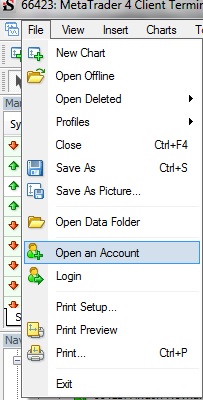
- Click on "File" of the main menu. A drop-down menu will appear.
- Select "Open an account" from there to call out the first window of the account opening procedure: "Personal details".
- Fill out the fields and tick the "I agree to subscribe to your newsletters" check-box.
- Press "Next" to continue.
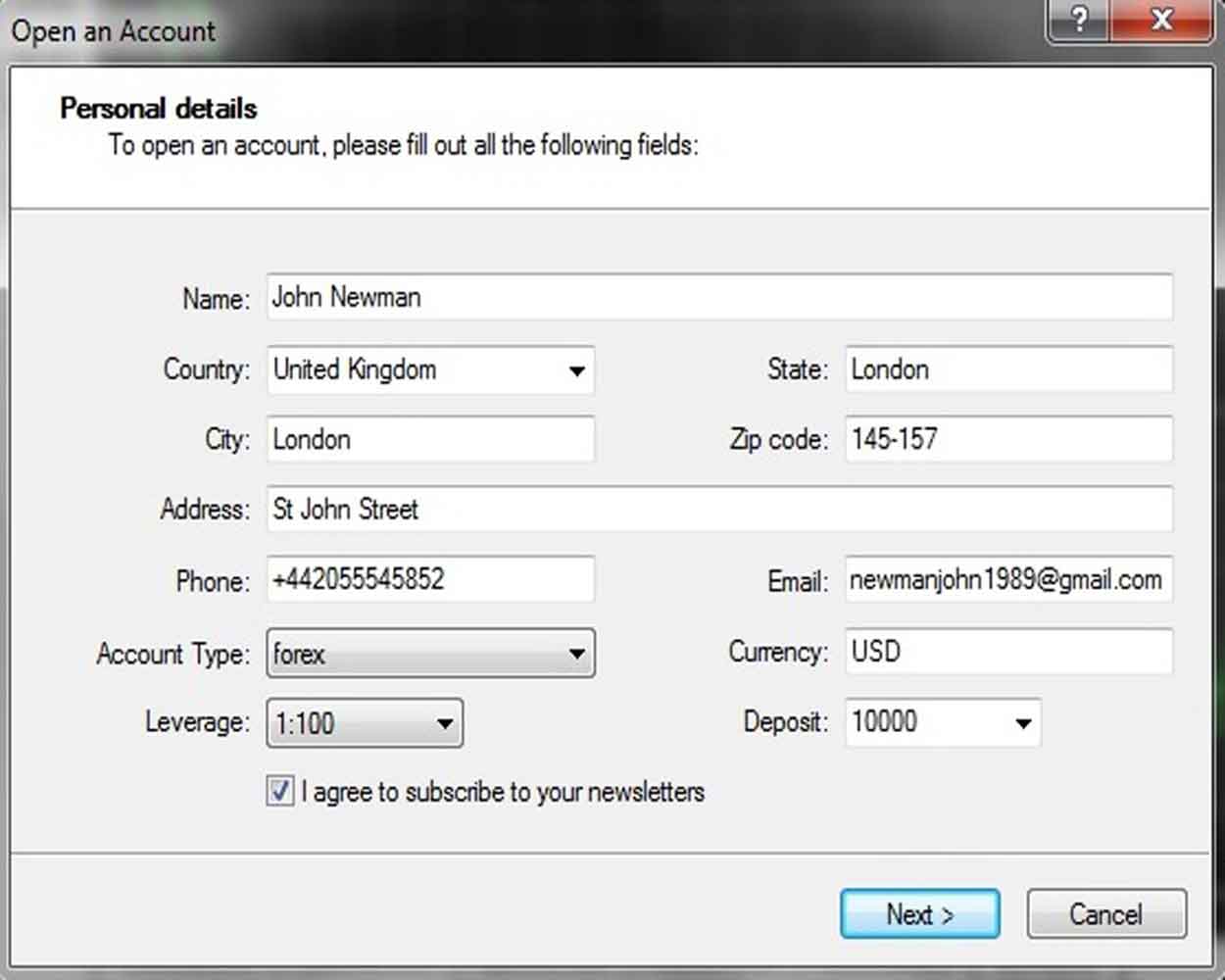
Enter accurate information, especially your email address, as it is used for account-related notifications. The newsletter check-box is required to complete this window.
4. Select Trading Servers
Select the appropriate demo server and press "Next".
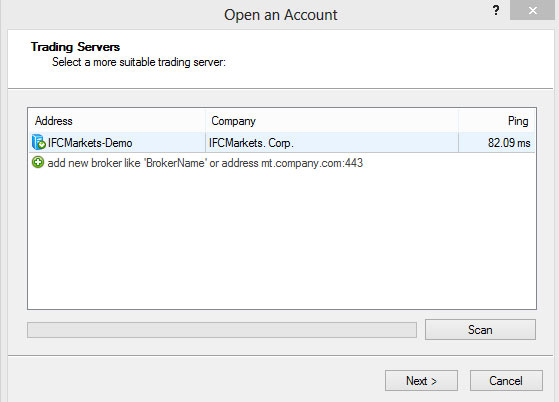
The trading server connects your MT4 terminal to the market data and order execution system. Choose a demo server so that your account is created as a practice account with virtual funds. The server name is part of your login details, so you will need it every time you connect to your account from another computer or terminal.
5. Registration
A new pop-up window "Registration" will appear containing your account's credentials, which you need to keep in a safe place:
- Name: the account holder name you entered in the personal details.
- Account Type: the type of trading account your demo simulates.
- Deposit: the virtual starting balance of your demo account.
- Server: the trading server your account is connected to.
- Login: your demo account number, used to log in to the terminal.
- Password: the main password that gives full access to trading.
- Investor: the read-only password. It lets another person view your account and trades without being able to place orders.
Make sure you saved this information and press "Finish" to close the pop-up window and resume the procedure.
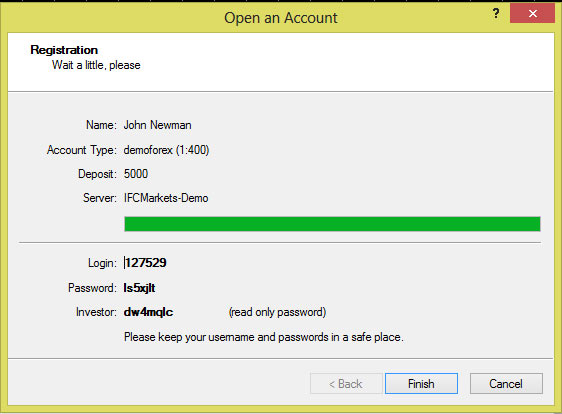
You will be automatically logged in to your new demo account, and you can open charts, place practice orders, and test your strategies straight away.
Benefits of a MetaTrader 4 Demo Account
- No financial risk: you trade with virtual money, so mistakes cost nothing.
- Real market conditions: prices and spreads follow the live market.
- Full platform access: test indicators, templates, one-click trading, and Expert Advisors.
- Strategy testing: build a track record and refine your trading plan before going live.
- Quick start: registration takes about a minute and does not require a deposit.
Tips for Effective Demo Trading
- Treat the demo balance as real money: apply the same position sizes and risk limits.
- Keep a trading journal with entries, exits, and reasons for every trade.
- Practice risk management with Stop Loss and Take Profit on every order.
- Test one strategy at a time, so you can measure what works.
- Move to a live account only after you see consistent results over a meaningful number of trades.
MT4 Demo vs Live Account
| Feature | Demo Account | Live Account |
|---|---|---|
| Funds | Virtual | Real |
| Financial risk | None | Yes |
| Market quotes | Real-time | Real-time |
| Platform tools | Full MT4 functionality | Full MT4 functionality |
| Psychological pressure | Low | High |
| Best for | Learning and testing | Actual trading |
FAQ
How do I open a demo account in MetaTrader 4?
Launch the MT4 terminal, click File → Open an Account, enter your personal details, select a demo server, and press Finish in the Registration window. You are logged in automatically.
Is the MT4 demo account free?
Yes. The MetaTrader 4 demo account is free and does not require a deposit.
What should I do with the demo account login and password?
Save them in a safe place. You need the login, password, and server name to reconnect to your demo account or to log in from another device.
Can I trade with real money on a demo account?
No. A demo account uses virtual funds only. To trade with real money, you need to open a live account.
Can I use Expert Advisors and indicators on a MetaTrader 4 demo?
Yes. A demo account supports the same indicators, templates, and Expert Advisors as a live account, which makes it a suitable place to test them.
Does the MT4 demo account use real prices?
Yes. Demo accounts display real-time market quotes, but order execution is simulated and may differ slightly from live trading.

Was this article helpful?

 You can study CFD trading more thoroughly and see CFD trading examples in the section How To Trade CFDs Visit Educational Center
Register with IFC Markets Now
Global Access to Financial Markets from a Single Account
